Flashing your OnePlus mobile can be a great solution for troubleshooting software glitches, repairing bricked devices, or simply starting fresh with your smartphone. Similarly, resetting your device allows you to clear out unnecessary data and restore factory settings. If you’re unfamiliar with these processes, this guide will take you step-by-step through flashing and resetting a OnePlus mobile phone.
Why Flash Your OnePlus Mobile?
Flashing is often performed to:
- Fix boot loops, bricked states, or unresponsive devices.
- Resolve software-related bugs.
- Upgrade or downgrade firmware.
- Restore your phone to factory settings.
Flashing does erase all your data, so it’s important to back up your files before proceeding.
Finding Your OnePlus Model Number
Before starting, you need to find your OnePlus model number to ensure you’re downloading the correct files for the process. Here’s how:
- Use Fastboot Mode
- Turn off your phone.
- Press and hold Volume Up + Volume Down + Power to enter Fastboot Mode.
- Here, you’ll see your phone’s product name.
- Search Online
Use the product name you found in Fastboot Mode and search online to confirm your exact model number or model name. This step is crucial to ensure you get the right flashing files.
Downloading the Flash File
Once you know your model number, follow these steps:
- Visit the OnePlus firmware source at OnePluscommunityserver.com.
- Navigate to the Unbrick Tool section of the site.
- Find and download the firmware (flash file) that matches your model number.
Make sure to download the version specifically for your device as installing the wrong firmware can cause issues.
Required Flashing Tool
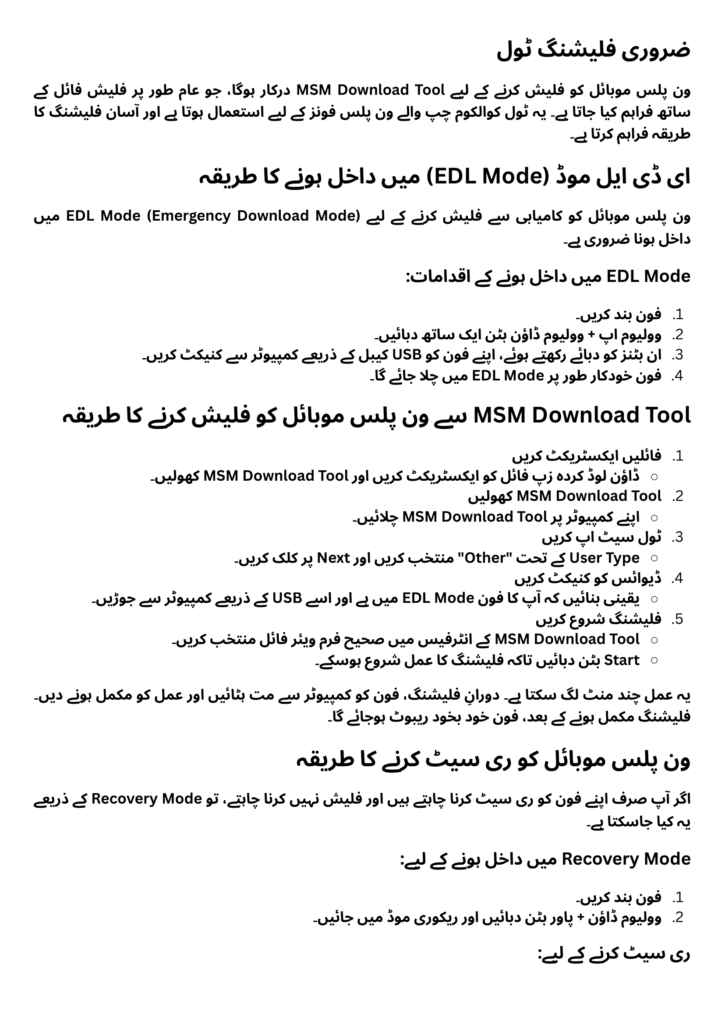
To flash OnePlus mobiles, you’ll need the MSM Download Tool, which is typically bundled with the firmware files you downloaded. This tool is used to install new firmware on your device. It’s compatible with Qualcomm-based OnePlus devices and provides an easy-to-use interface for flashing.
Entering EDL Mode for Flashing
OnePlus devices require EDL Mode (Emergency Download Mode) to flash successfully. Here’s how to enter EDL Mode:
- Turn off your device.
- Press and hold Volume Up + Volume Down simultaneously.
- While holding the buttons, connect your phone to a PC or laptop with a USB cable.
- Your phone will enter EDL Mode automatically.
How to Flash OnePlus Mobiles Using MSM Download Tool
Follow these steps to flash your OnePlus phone:
- Extract Files
Extract the flash file and MSM Download Tool files from the downloaded zip package. - Open MSM Download Tool
Open the MSM Download Tool on your PC. - Set Up the Tool
- Select “Other” under the User Type option and click Next.
- Connect Your Device
- Ensure your phone is in EDL Mode by following the steps mentioned.
- Connect your device to the PC.
- Start Flashing
- Select the correct firmware file from the MSM Download Tool interface.
- Click the Start button to begin the flashing process.
The process might take a few minutes. Do not disconnect your phone or interrupt the process. Once completed, your device will reboot automatically.
Resetting Your OnePlus Mobile
If you only want to reset your phone and not flash it, you can do so via Recovery Mode:
- Enter Recovery Mode
- Turn off your phone.
- Press and hold Volume Down + Power to enter Recovery Mode.
- Reset the Device
- Use the volume buttons to scroll and power button to select Wipe Data/Factory Reset.
- Follow the on-screen instructions to reset your device.
Alternatively, you can enter Recovery Mode via Fastboot Mode, which you access using Volume Up + Volume Down + Power.
How to Force Restart OnePlus
If your OnePlus mobile becomes unresponsive, you can force restart it by pressing Volume Up + Power until the device reboots.
Precautions Before Flashing or Resetting
- Backup Your Data
Both flashing and resetting can delete all your data, so it’s essential to back up your photos, contacts, and files beforehand. - Use Official Tools and Firmware
Download the flash files and MSM Download Tool from official or trusted sources to avoid malware or compatibility issues. - Ensure Battery is Charged
Make sure your device has at least 50% charge to avoid interruptions during the process. - Understand the Process
Flashing is a technical process. If you’re unsure about any step, seek assistance to avoid damaging your device.
Final Thoughts
Flashing and resetting OnePlus mobiles can help restore your device to its optimal state, whether you’re fixing software issues or simply starting fresh. By following the detailed steps above, you can safely complete the process. Remember, always back up your data, download the correct files for your model, and use the tools carefully.
If you encounter any difficulties or feel uncertain, don’t hesitate to consult an expert. Flashing and resetting your phone might seem complex, but with patience and the right guidance, it’s entirely manageable.
Credit: Sir Habib Butt (Punjab Mobile)
Read Also: How to Flash iPhone