Flashing your iPhone can be a lifesaver when the device faces software issues, becomes unresponsive, or experiences a crash. Unlike Android devices that offer both reset and flashing options, iPhones rely solely on flashing to resolve such problems. Whether it’s updating to the latest iOS version or resolving a bricked phone, flashing ensures that your iPhone restores functionality.
This blog will guide you through the process of flashing an iPhone, step by step, and explain the tools, requirements, and precautions necessary to do it correctly.
3 Key Points to Remember Before Flashing an iPhone
- Flashing Only, No Reset
Unlike other phones, iPhones don’t have the option for a direct reset to solve software-related issues. Flashing remains the only viable solution when your device faces critical software malfunctions or errors. - Use an Original Cable
Always use the original Lightning cable provided by Apple or a certified replacement. Faulty or non-authentic cables can lead to interruptions during flashing, potentially damaging your device. - Flashing Requires Internet Connectivity
The flashing process on iPhones isn’t possible without an active internet connection. The device needs to communicate with Apple’s servers to verify firmware files and complete the flashing procedure successfully.
Things You Need to Flash an iPhone
To begin the flashing process, gather the following essential items.
- Device Model Number
Each iPhone model has unique flashing requirements. The model number can be checked by connecting the device to your computer’s flashing tool (such as iTunes) while it’s in recovery mode. - Flashing File
You’ll need the correct firmware for your iPhone model. Visit ipsw.me to find and download the appropriate IPSW file for your device. Ensure that the firmware version matches your model and region. - Flashing Tool
- iTunes (Official Tool)
iTunes is the most reliable and official tool for flashing iPhones. It’s free and supports all iPhone models. - 3uTools (Third-Party Tool)
A third-party alternative that offers additional features like customization. It’s user-friendly and supports flashing across multiple Apple devices.
- iTunes (Official Tool)
- Flashing Mode (Recovery Mode)
To flash an iPhone, the device must be in recovery mode. Follow the instructions below based on your iPhone model.
Steps to Flash an iPhone
Now that you have everything you need, follow these steps to flash your iPhone.
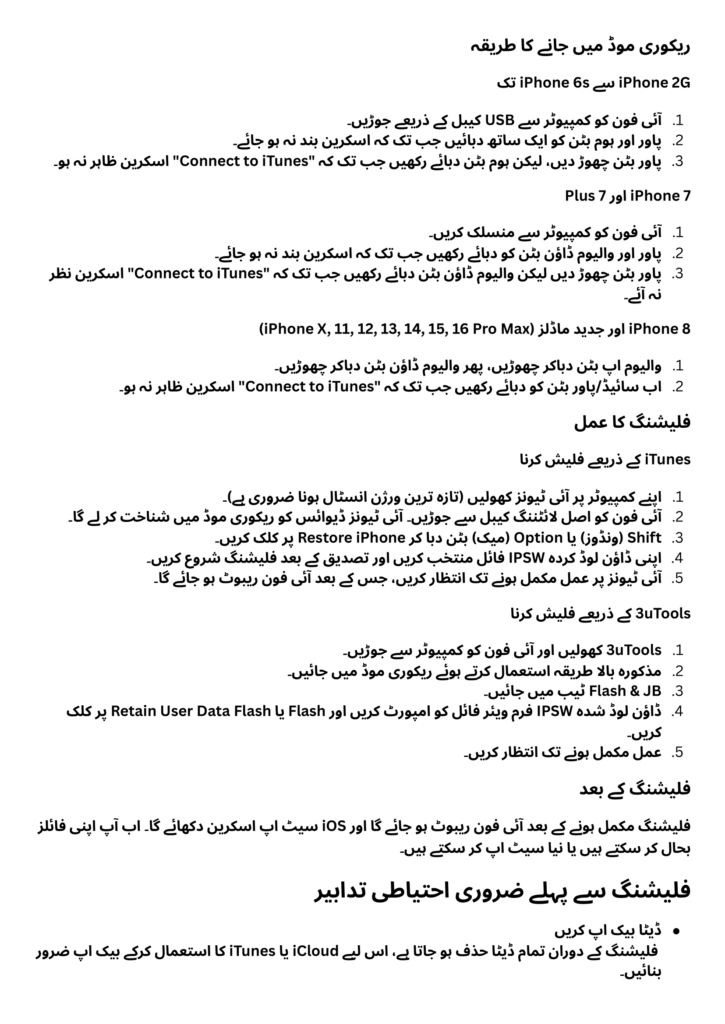
Entering Recovery Mode
iPhone 2G to iPhone 6s
- Plug in the Lightning cable and connect your iPhone to a computer.
- Simultaneously press and hold the Power and Home buttons until the screen goes black.
- Release the Power button, but keep holding the Home button until the “Connect to iTunes” screen appears.
iPhone 7 Series
- Plug in the Lightning cable and connect your iPhone to a computer.
- Simultaneously press and hold the Power and Volume Down buttons until the screen goes black.
- Release the Power button, but continue holding Volume Down until the “Connect to iTunes” screen appears.
iPhone 8 and Later (Including SE 2nd Gen and iPhone 16 Pro Max)
- Quickly press and release Volume Up, then Volume Down.
- Hold the Side/Power button until the “Connect to iTunes” screen appears.
Flashing the iPhone
Once your iPhone is in recovery mode, follow the steps below to complete the flashing process.
Using iTunes
- Open iTunes on your computer (make sure it’s the latest version).
- Connect your iPhone with the original Lightning cable. iTunes will detect the device in recovery mode.
- Hold the Shift key (Windows) or Option key (Mac) and click Restore iPhone.
- Navigate to the location of the previously downloaded IPSW file from ipsw.me.
- Select the file and confirm to begin the flashing process. iTunes will erase and reinstall iOS on your device.
Using 3uTools
- Open 3uTools on your computer and connect your iPhone.
- Enter recovery mode using the steps mentioned above.
- Navigate to the Flash & JB tab in 3uTools.
- Import the IPSW firmware file and click on Flash or Retain User Data Flash depending on your preference.
- Wait for the tool to complete the process without interruptions.
Post-Flashing Setup
After flashing, your iPhone will reboot and display the iOS setup screen. Follow the on-screen instructions to restore your data from a backup or set up the device as new.
Precautions to Ensure a Smooth Flashing Process
- Backup Your Data
Flashing will erase all data on your iPhone. Use iCloud or iTunes to back up your important files before proceeding. - Charge Your Device
Ensure the battery level is at least 50% before starting to avoid interruptions during the process. - Use Trusted Firmware
Only download IPSW files from verified sources like ipsw.me to avoid compatibility issues or potential malware. - Follow Instructions Carefully
Incorrect steps or disruptions (like disconnecting the cable) could leave your phone stuck in recovery mode or bricked. - Keep Your Internet Connection Stable
The flashing process relies on Apple servers to verify the firmware. Ensure a stable internet connection throughout. - Be Patient
Flashing iPhones can take several minutes to complete. Rushing things or disconnecting the device midway can result in errors.
Final Thoughts
Flashing an iPhone doesn’t need to be intimidating when you have the right information and tools at your disposal. Whether you’re trying to fix software glitches, update iOS, or revive a bricked device, following the steps above will help you achieve a seamless flashing process.
Always remember to prioritize safety by using original accessories, validated firmware, and official tools. If you find yourself stuck or unsure, it’s best to consult a professional to avoid causing permanent damage to your device.
With a little patience and careful preparation, you can successfully flash your iPhone and enjoy a fully functional device once again!
Credit: Sir Habib (Punjab Mobile)


Pingback: How to Flash and Reset OnePlus Mobiles - Fakhar Mobiles