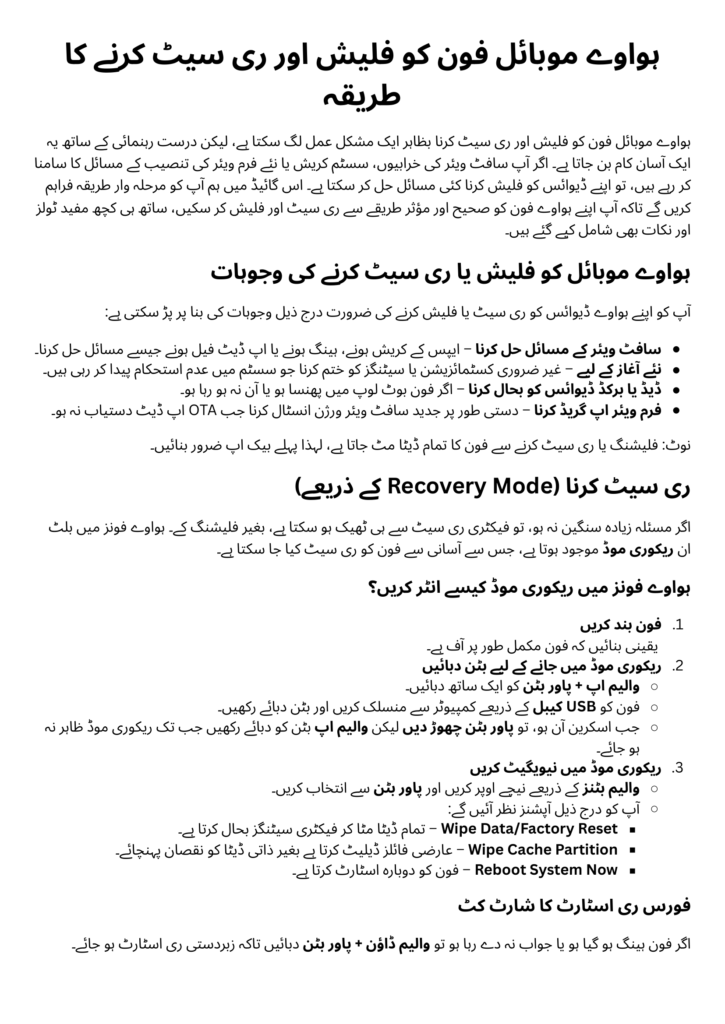
Flashing and resetting Huawei mobile phones can seem complex, but with the right guidance, it becomes a straightforward process. Whether you’re dealing with software bugs, system crashes, or need to install fresh firmware, flashing your device can fix many issues.
This guide provides you with clear, step-by-step instructions on how to reset and flash Huawei phones correctly and efficiently, along with some helpful tools and tips.
Why Flash or Reset a Huawei Mobile?
There are several reasons you might need to reset or flash your Huawei device:
- Fix Software Issues: Address problems like crashing apps, freezing, or failed updates.
- Fresh Start: Remove customizations or configurations causing instability.
- Unbrick Devices: Bring your phone back to life if it’s stuck in a boot loop or won’t start.
- Update Firmware: Manually upgrade your device to the latest software version.
Before you proceed, remember that resetting or flashing your phone will erase all your data. Back up important files before starting.
Resetting Huawei Phones Using Recovery Mode
Sometimes, a factory reset can solve minor issues without the need for flashing firmware. Huawei devices come with a built-in recovery mode, allowing you to reset the phone easily.
Steps to Enter Recovery Mode on Huawei Phones
- Turn Off Your Phone:
Ensure the device is completely powered off. - Key Combination for Recovery Mode:
- Press and hold the Volume Up and Power keys.
- Connect the phone to a computer using a USB cable while holding the buttons.
- When the screen turns on, release the Power button but keep holding Volume Up until Recovery Mode appears.
- Navigate Recovery Options:
- Use volume keys to scroll and the power button to select.
- Options you’ll see:
- Wipe Data/Factory Reset: Erases all user data and restores factory settings.
- Wipe Cache Partition: Clears temporary files without deleting personal data.
- Reboot System Now: Restarts the device.
Force Restart Shortcut
If your phone is unresponsive, press Volume Down + Power to force a restart.
Use Recovery Mode cautiously, as a factory reset deletes all data on your device.
Flashing Huawei Phones
Flashing involves reinstalling or updating the firmware. This can fix deeper issues or refresh your phone’s operating system.
Tools and Files Needed for Flashing
- Model Number:
Identify your phone’s model number to download the correct firmware.- For older models, check the sticker under the battery.
- For newer models, look on the back panel or SIM tray.
- Firmware (Flashing File):
Huawei doesn’t provide official firmware files directly. Search online using your model number and the keywordupdate.app(e.g.,RNE-L21 update.app). - MicroSD Card:
Huawei phones flash firmware via memory cards. Use a card with at least 16GB capacity. - Flashing Mode:
Access flashing mode by pressing Volume Up + Volume Down + Power simultaneously while the phone is off. Hold until the device enters flashing mode.
Steps to Flash a Huawei Phone
- Download and Prepare Firmware:
- Search your model’s specific update file online.
- Extract the downloaded
.zipfile on your PC. - Place the
update.appfile into a folder nameddloadon your microSD card.
- Insert the Memory Card:
- Insert the prepared card into your phone, ensuring the battery is at least 15% charged.
- Enter Flashing Mode:
- Hold Volume Up + Volume Down + Power together until the flashing screen appears.
- The system will automatically locate the firmware and begin the update.
- Wait for Completion:
- Do not interrupt the process, as this could permanently damage your phone. The device will reboot after a successful flash.
Troubleshooting Common Flashing Issues
- File Not Recognized:
If the phone doesn’t detect the firmware file, format the memory card to the FAT32 file system, then re-create thedloadfolder and copy the files again. - Battery Too Low:
Ensure your phone has enough charge before starting. - Wrong Firmware Error:
Double-check the downloaded firmware matches your phone’s model number.
Using Flashing Tools
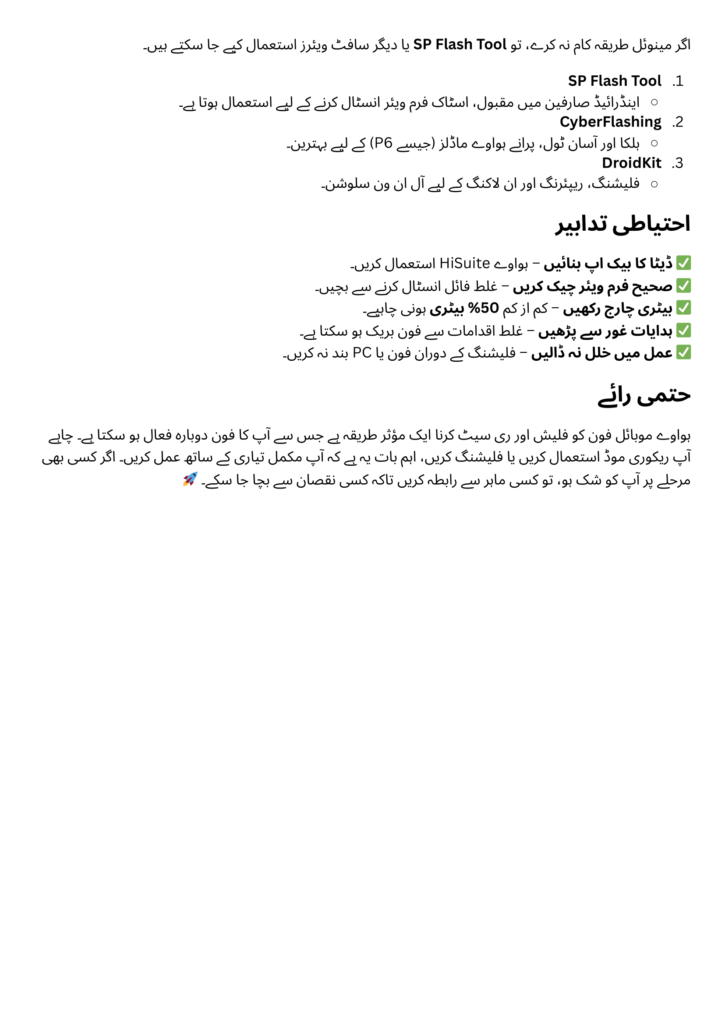
If manual flashing doesn’t work, you can use professional software tools like SP Flash Tool or alternatives.
- SP Flash Tool:
- Popular among Android users for flashing stock firmware.
- Compatible with Huawei devices for recovery or customization.
- CyberFlashing:
- Lightweight and straightforward tool designed for Huawei phones like older models (e.g., P6).
- Ideal for flashing ROMs quickly and easily.
These tools often require a PC, the correct drivers (ADB and Fastboot), and your phone in Download Mode.
Alternative Tools
For users not comfortable with manual methods, programs like DroidKit offer all-in-one solutions for flashing, repairing, or unlocking Huawei phones.
Precautions Before Resetting or Flashing
- Back Up Data:
Use tools like Huawei HiSuite to back up your files. - Check Your Firmware:
Download the exact file for your device’s model and region. - Charge Your Battery:
A minimum of 50% battery is recommended to avoid interruptions. - Follow Instructions Carefully:
Incorrect steps can lead to bricking your phone permanently. - Be Patient:
Flashing can take time, so ensure you don’t interrupt the process.
Final Thoughts
Flashing and resetting Huawei mobile phones can breathe new life into your device if it’s malfunctioning. Whether you’re using Recovery Mode for a simple reset or manually flashing with firmware, the key is preparation and patience. Always back up your data, ensure you’re using compatible files, and follow instructions meticulously.
With the right approach, you can resolve most software issues and keep your Huawei phone running smoothly. Remember, if at any point you’re unsure, consult a professional to avoid potential risks to your device.
Credit: Sir Habib Butt (Punjab Mobile)